When you directly access a discovery using its URL, you can filter its content by adding one or more filter parameters to the URL's query string. This effectively adds a background filter to your visual at runtime.
Using a Direct URL
You can copy the Direct URL for an item to your clipboard, and then paste it into your browser or share it with others. The Direct URL link is available from an item's App Tabs menu, Metadata panel, or from its Actions panel in Content Explorer. For more information, see Direct Load (via URL).
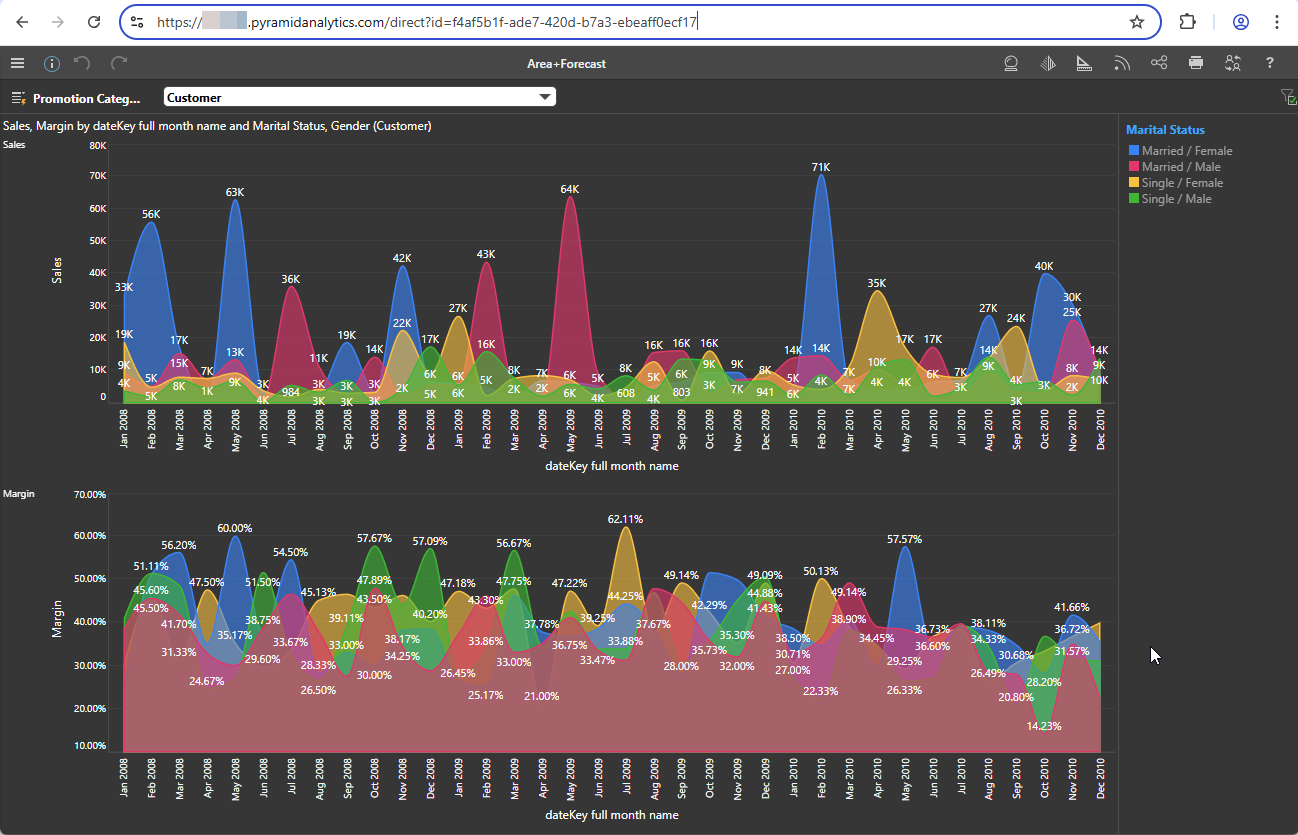
Using the Filter Query String
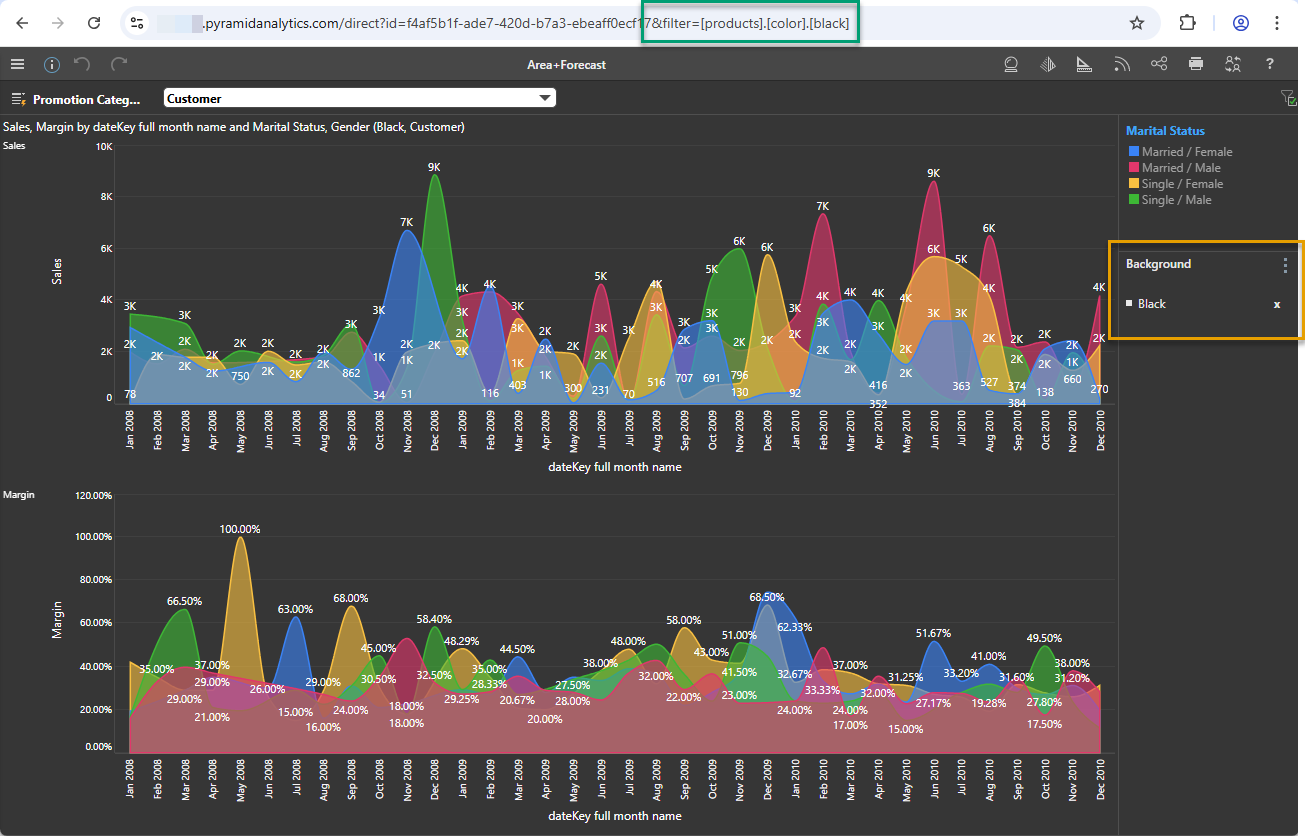
Filter by Color
You can add filters to the item as parameters appended to the URL's query string, using the following syntax:
&filter=[products].[color].[black]
Filter by Color and Gender
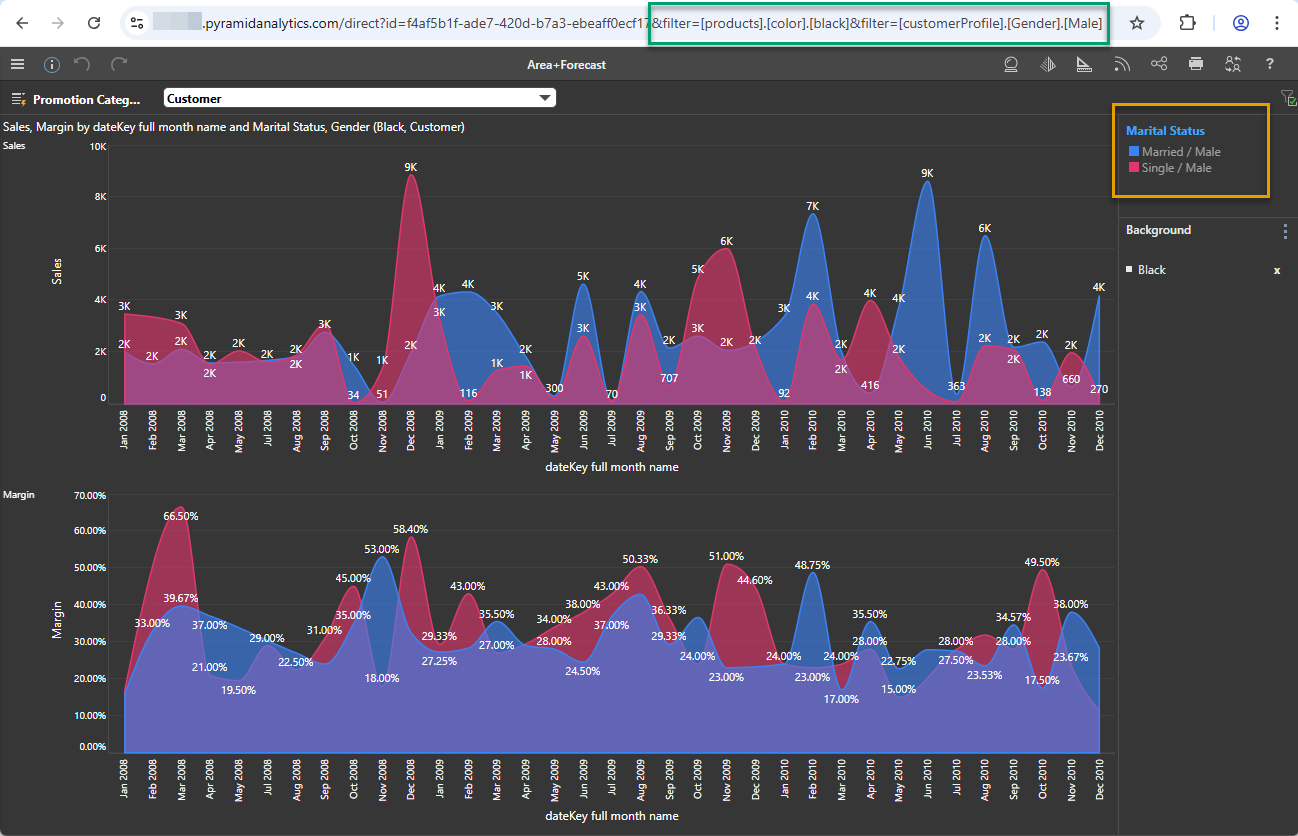
You can add multiple filters to the URL's query string - in this example, the following filters were added:
&filter=[products].[color].[black]&filter=[customerProfile].[Gender].[Male]
Filter using PQL
You can construct a PQL expression and add it to your &filter. The following example URL initializes the visual for the date range from Q1 2010 to Q4 2010:
&filter=%7B[data].[dateKey%20full%20quarter]:SET:%7BRange([data].[dateKey%20full%20quarter].[Q1%202010],[data].[dateKey%20full%20quarter].[Q4%202010])%7D%7D
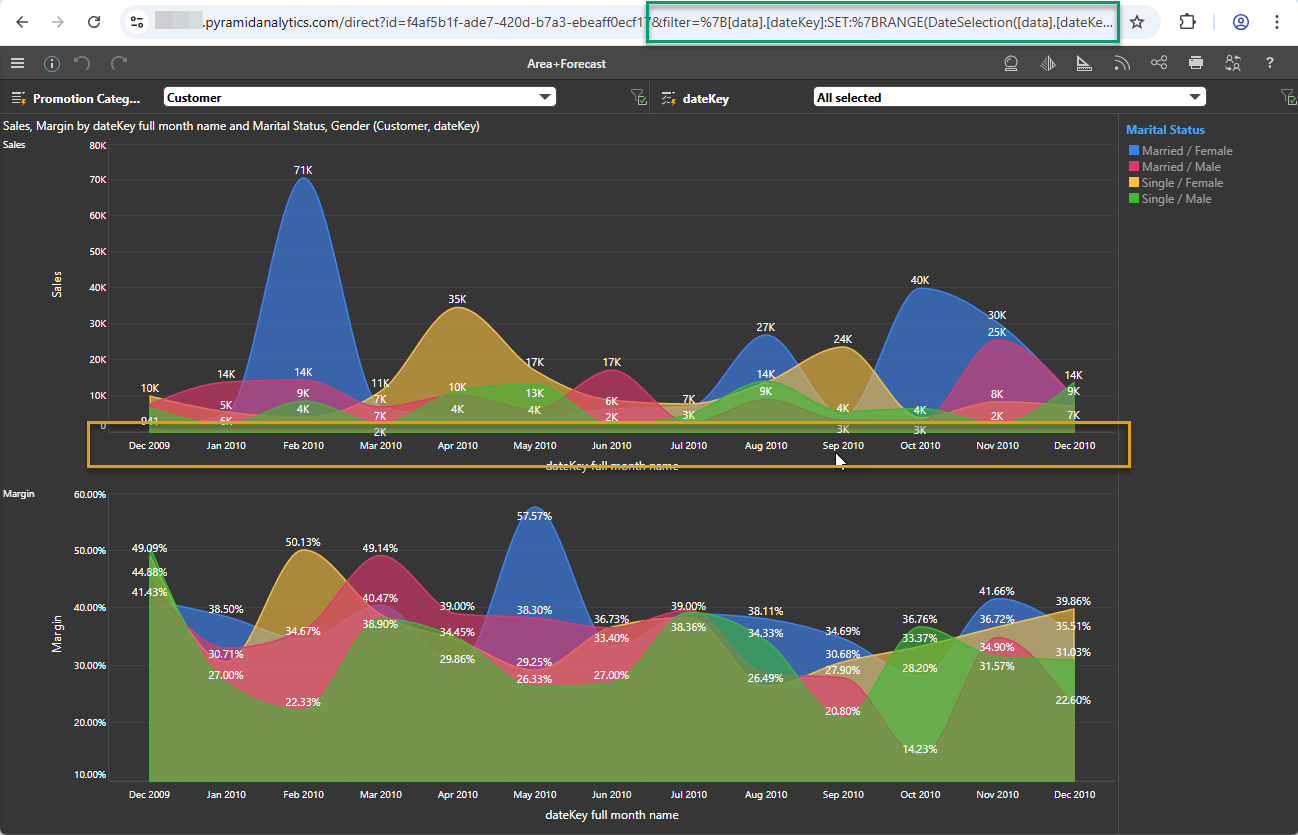
When the discovery is launched in the Viewer (using a URL), it is filtered to include data from the specified date range. You can see the effect of the filter on the x-axis (orange highlight above) and on the dateKey slicer.
Tip: Filtering in this manner is not limited to dates. You can build a PQL expression in Formulate and use the &filter query string to inject the resulting data into the URL. For more information, see Formulate.
Date Range Expression
- The example creates a custom set containing a date RANGE.
- The syntax for the expression is
[table].[column]:SET:{syntax}. - The start and end dates in the range are selected from the model using the Range function:
- The start and end dates for the range are separated by a comma.
- The unique name is used for each (in this case, Q1 2010 to Q4 2010).
- The full range is contained within
{braces}, which need to be escaped using the standard escape characters %7B and %7D.
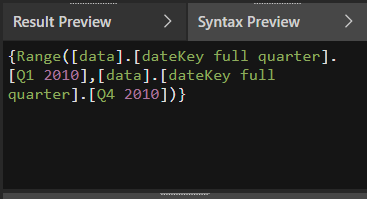
Note: The preceding screen shot shows the Syntax preview when creating a Range List in Formulate. This formula shown in this preview can be manually copied into your URL as required. For more information, see Building a List in Formulate.